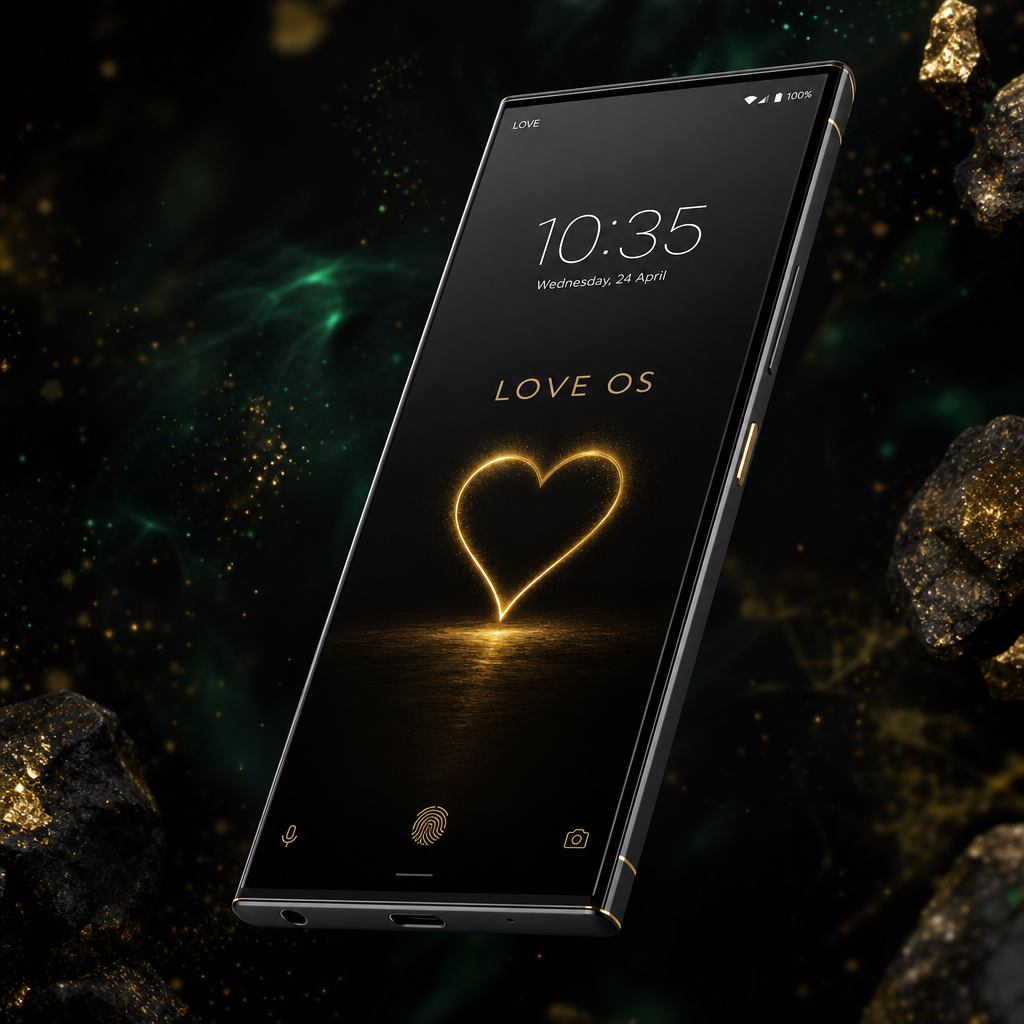
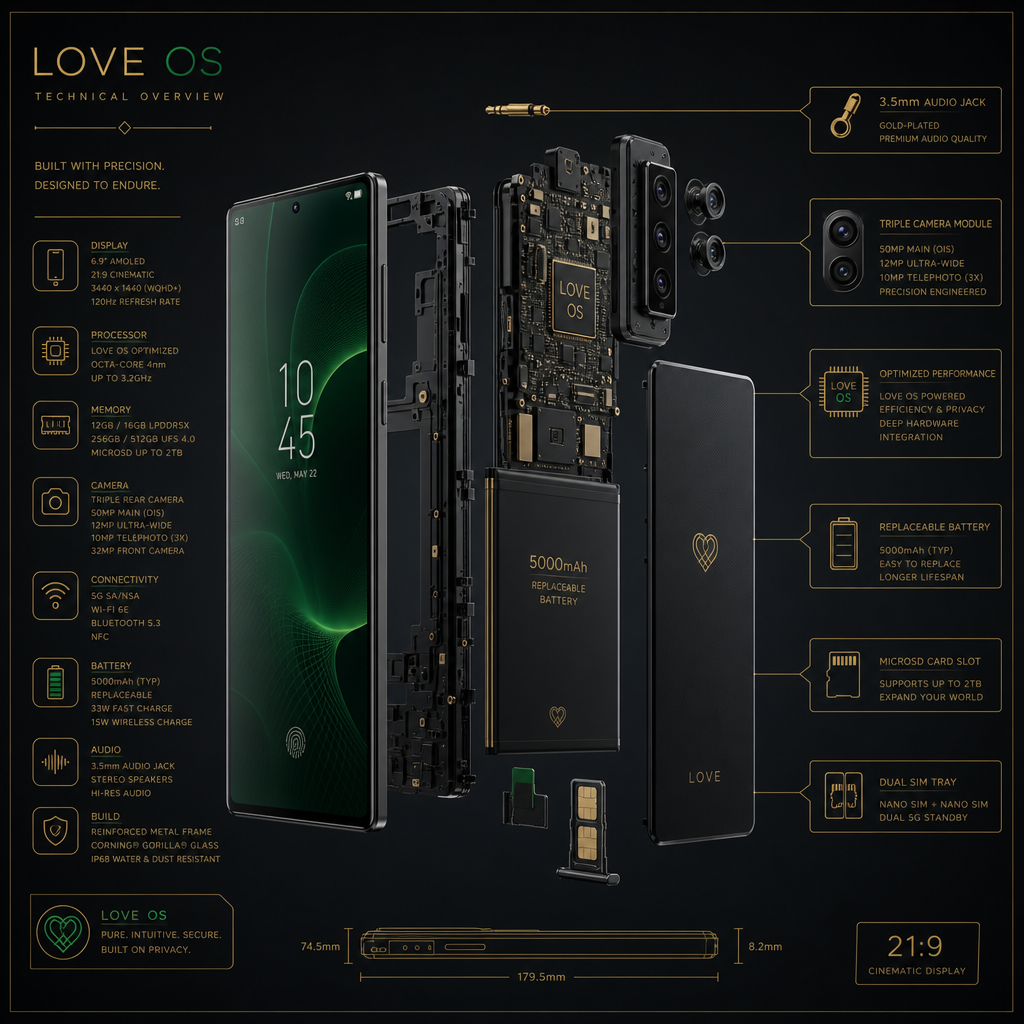
Every feature designed to deepen your connection with the LOVE ecosystem.
Built-in LOVE Wallet
Send, receive, and manage LOVE Coins natively.
Social Financial Network
Connect with the LOVE community directly from your phone.
Instant LOVE Transfers
Lightning-fast peer-to-peer transactions.
Rewards System
Earn LOVE just by using your phone every day.
Hardware Security
Secure enclave for your crypto wallet keys.
Heart Camera
Iconic heart-shaped dual camera module.
Direction
A phone that sets you free
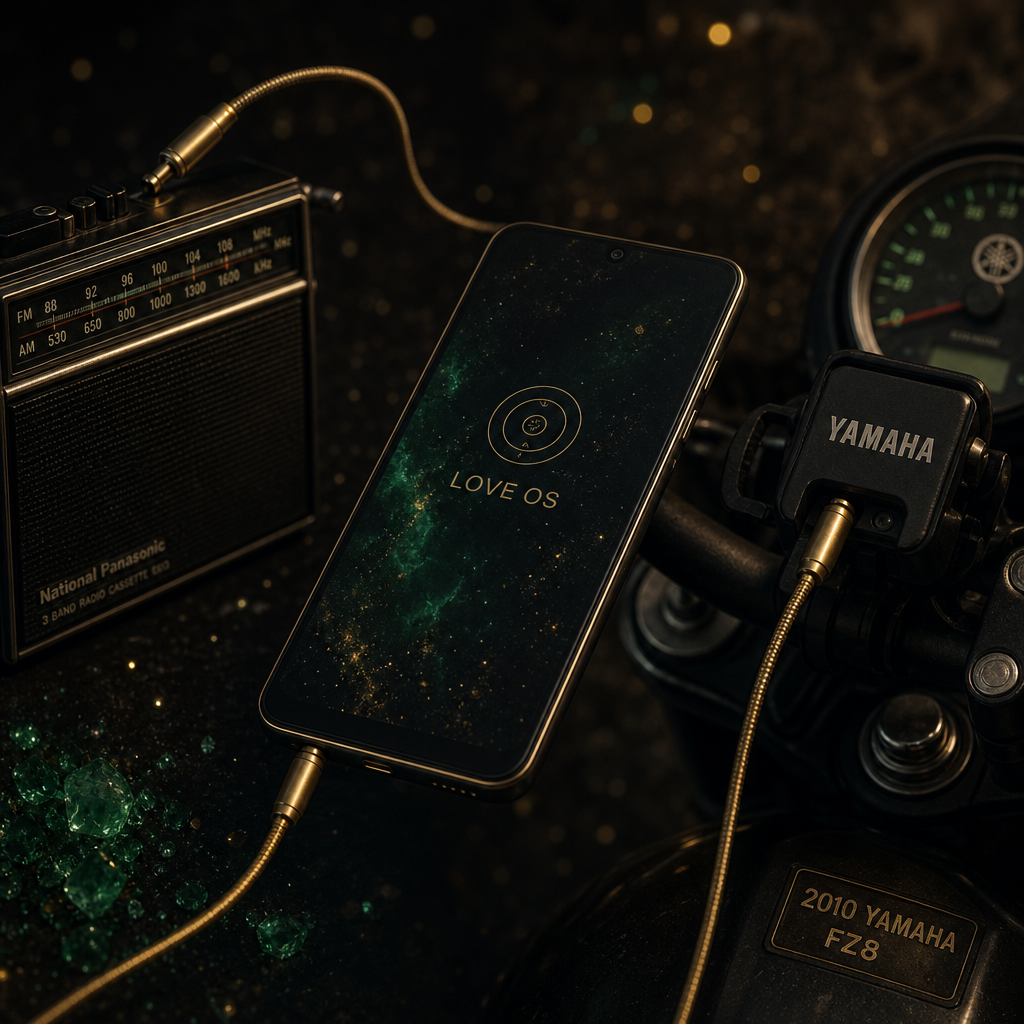
Inspired by the Sony Xperia 10 experience — right-sized, durable, with a 3.5mm jack that bridges a 1980 radio and a 2010 Yamaha. Freedom is not a slogan; it's a port.
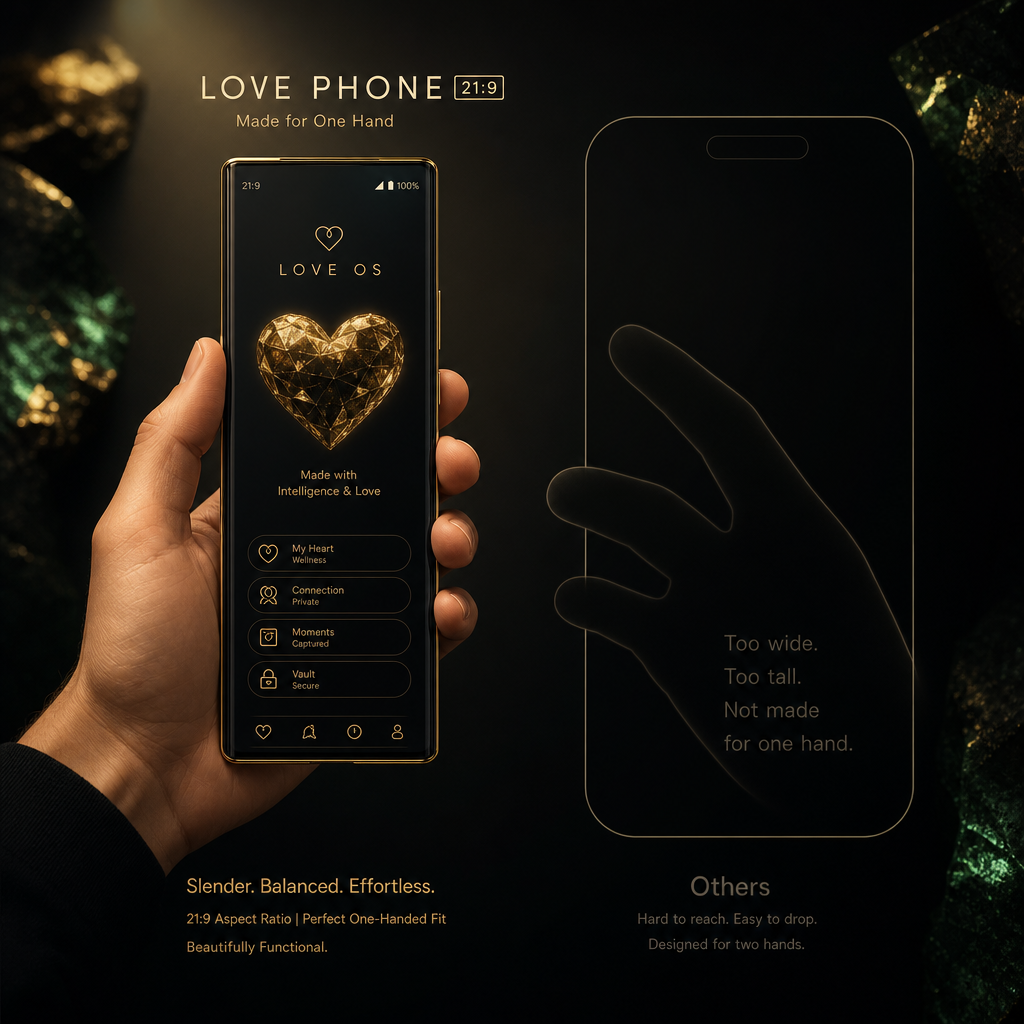
21:9 — one hand, real grip
3.5mm jack — freedom to connect
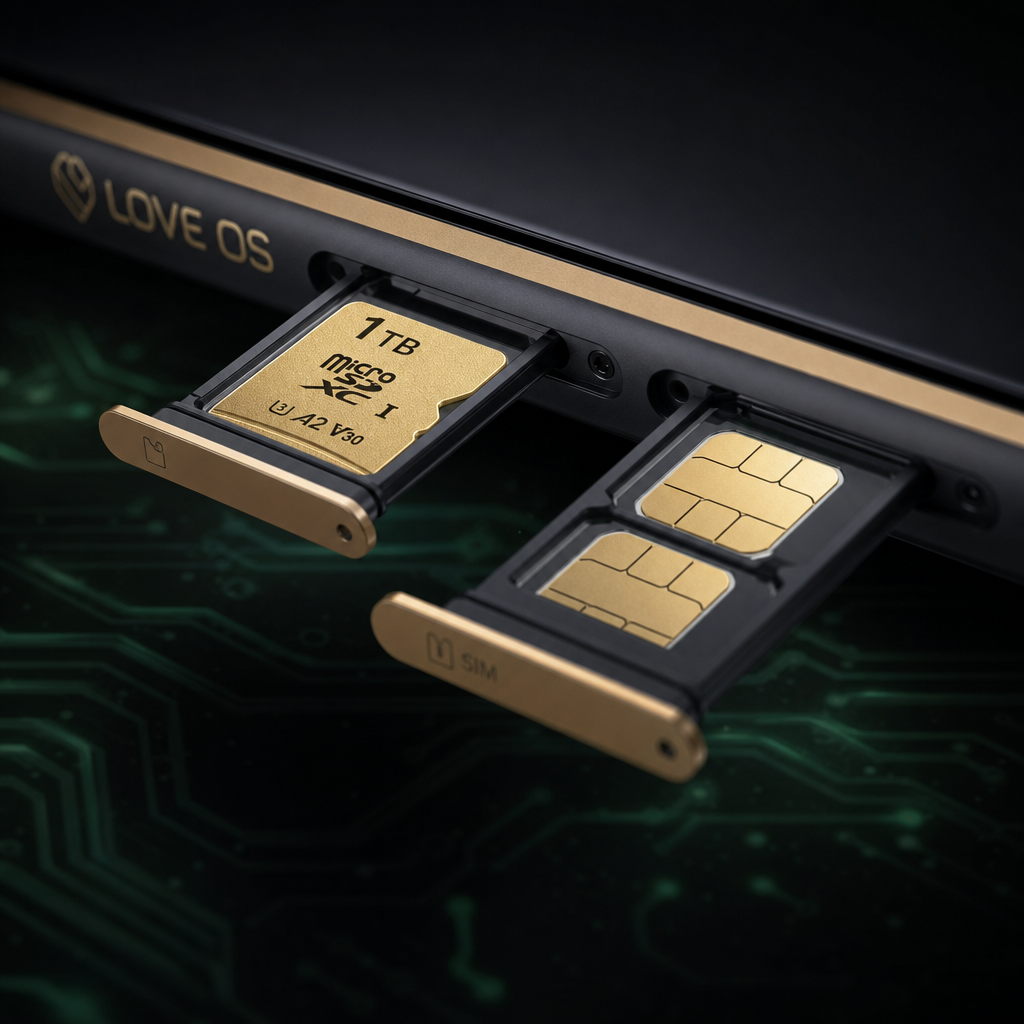
microSD + dual SIM — your data, your rules
Modular freedom
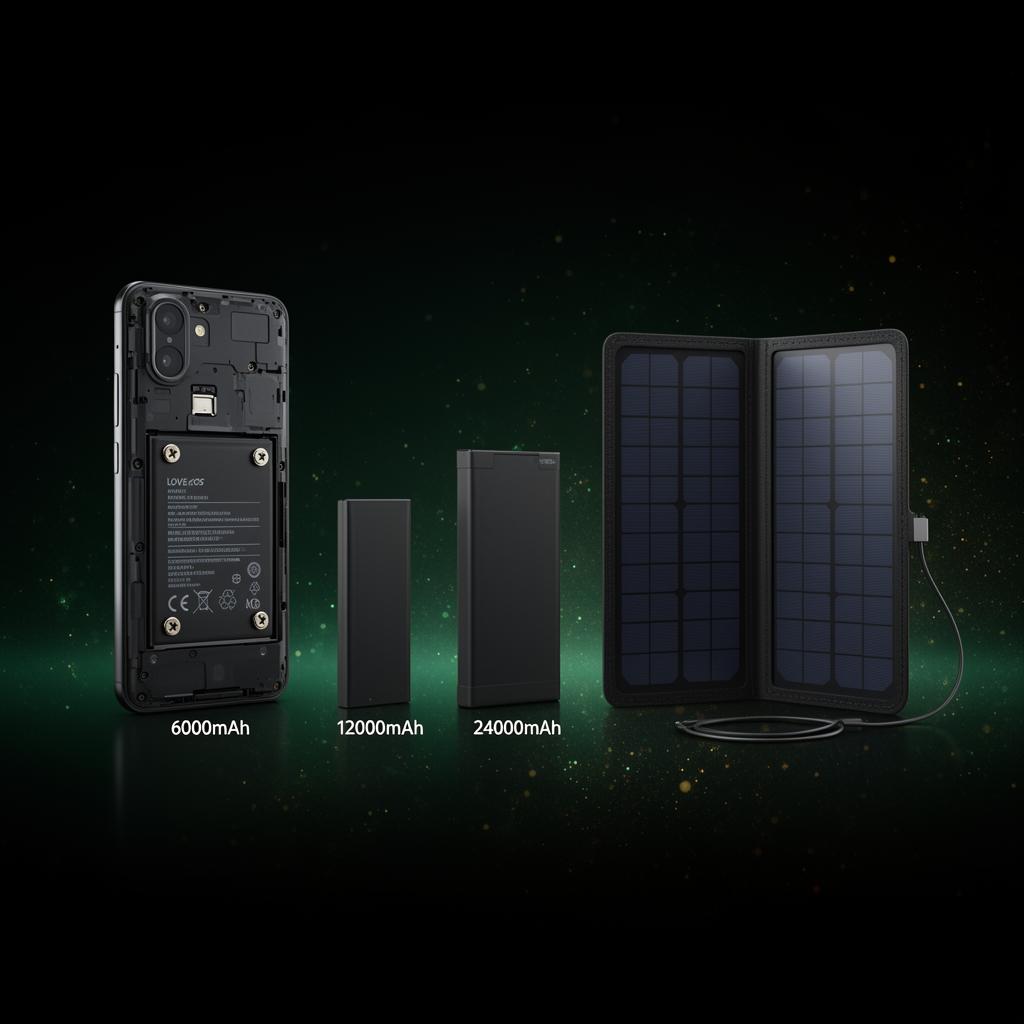
Four screws. Three batteries. One sun.
Unscrew 4 small screws — like on a laptop — and swap the battery yourself. Standard 6,000 mAh for everyday, 12,000 mAh for the road, 24,000 mAh for multi-day off-grid living. Pair it with a foldable solar cell that fits in your laptop bag, and you stop hunting for power outlets forever.
Configure your power
Battery lot (chemistry)
Battery chemistry comparison
Lot A
Standard Li-ion
~500–800 cycles
lighter · faster charge
Lot B
Premium LiFePO4
~3000 cycles
safer · stable · longer life
Safety
Lot AHigher thermal sensitivity — avoid extreme heat
Lot BStable chemistry — no thermal runaway risk
Longevity
Lot A~2–3 years typical daily use
Lot B~8–10 years typical daily use
Best for
Lot AUrban users, lighter carry, frequent upgrades
Lot BOff-grid, rural, extreme temps, long-term ownership
FAQ — Which lot is for me?
Who should pick Lot A?+
City dwellers who upgrade every 2–3 years, value lighter weight, and mostly charge overnight at home. Best if you treat phones as replaceable tools.
Who should pick Lot B?+
Off-grid travellers, rural users, or anyone who wants a 10-year battery and forgets to charge for days. Worth the +$39 if you hate planned obsolescence.
Daily usage difference?+
Lot A charges faster (0-80% in ~35 min) but you’ll notice capacity drop after year 2. Lot B charges slower (~55 min) yet holds 90%+ capacity for 5+ years with no heat anxiety.
Can I switch lot later?+
Yes — the battery module is user-swappable with 4 screws. You can upgrade from Lot A to Lot B anytime, or keep both packs for different trips.
Specs are indicative — final ODM partner chosen under our vet-before-invest principle.
LOVE OS · BYOD
Install LOVE OS on your existing phone
Got an Android that already serves you well (Honor, Samsung, Xiaomi, Pixel …)? You don't have to wait for LOVE Phone. LOVE OS Lite is the safe first step into the ecosystem — today on your device, tomorrow on dedicated hardware.
1
LOVE OS Lite (BYOD)
Your existing Android · free
Privacy launcher + LOVE Wallet, LOVE Browser, LOVE Mail, LOVE Messenger and LOVE Shield. Tracker blocking, encrypted comms, zero bloatware. No root, no warranty loss.
LOVE OS Lite is a launcher + app suite, not a full system replacement. Hardware-level protection (secure element, hardened kernel) ships with LOVE OS Plus or LOVE Phone.
Check compatibility
Will LOVE OS run on my phone?
Type your brand and model (e.g. "Honor 70", "Xiaomi 13 Lite", "2210129SG", "Pixel 7") and get a realistic Lite + Plus verdict.
Suggestions:
Step-by-step guide
How to install LOVE OS Lite (BYOD)
A real, honest guide. No root, no warranty loss. ~15 minutes.
1. Backup first (5 min)
Before anything, back up photos, contacts and important apps. LOVE OS Lite doesn't wipe anything, but caution is golden.
Tip: Google Photos, Files by Google, or manual USB. Your choice.
2. Allow installs from unknown sources
Settings → Apps → Special access → Install unknown apps → Chrome (or your browser) → Allow.
3. Download the LOVE OS Lite bundle (.apk)
Open loveos.tech/lite in your phone browser and download the signed .apk bundle. ~85 MB.
Tip: All bundles are signed with the LOVE Foundation key. SHA-256 hash is published on the same page.
4. Install and open
Tap the downloaded .apk → Install → Open. First launch guides you through permissions (only what's strictly needed: storage, internet).
5. Sign in or register LOVE account
Enter your email. If you already have a LOVE account (lovecoin.life), sign in and link everything in 30 seconds.
6. Set 6-digit wallet PIN
One PIN for everything — BTC, ETH, BNB, Polygon, Tron, XRP and Stellar SAFE. Also write down your 12 words and store them off-device.
Tip: 12 words = your only real backup. PIN lives only on this device.
7. You're ready 🎉
You have LOVE Wallet, Browser, Mail, Messenger and Shield. Your phone is still yours — Honor 70 with Android — just with an extra LOVE layer.
Stuck somewhere?
Write to us — we'll walk you through every step. BYOD is new and every phone has its quirks.
Real scenario: device was lent, user set a PIN and forgot. You're the original owner with invoices. Here's the path.
Proof of ownership = your protection. Telekom Slovenia invoices + device IMEI must match. Protects you during Mi Unlock, future service, or loss. Save PDFs in a dedicated folder.
Before you start
0. Get your proof of ownership as PDF
Telekom Slovenia invoices (installments) + IMEI on the device back must match. Save PDF invoices in a dedicated 'Xiaomi 13 Lite — documents' folder. This protects you during Mi Unlock and any future service.
Tip: Verify IMEI1 on the label with *#06# on a working phone — must match the invoice.
Step 1
Factory reset (Mi Recovery)
Power off. Hold Power + Volume Up until Mi Recovery appears. Choose 'Wipe Data' → confirm → Reboot. Dragan's PIN is wiped.
Step 2
FRP — previous user's Google account
Android may ask for the last Google account (Dragan's) — anti-theft protection. Contact Dragan: you need only his Google email + password, NOT the phone PIN. 30 seconds for him, only legitimate way past for you.
Tip: Without FRP unlock, no service helps legitimately. That's good — means Android works as intended.
Step 3
Mi Unlock — unlock the bootloader
On phone: Settings → About → tap MIUI version 7× for Developer Options → Mi Unlock Status → Add account. On PC, download 'Mi Unlock Tool' (en.miui.com/unlock). Sign in with same Mi account. Tool starts a waiting period — Xiaomi officially requires 7-30 days (anti-theft). Normal, not an error.
Tip: Proof of ownership (invoices) helps with Xiaomi support if you want to shorten the wait or hit an issue.
Step 4
Flash LOVE OS Plus base
After unlock: download LOVE OS Plus bundle for 'ziyi' (Xiaomi 13 Lite codename) from loveos.tech/plus. Bundle has LineageOS/crDroid base + LOVE OS layer. Flash via fastboot (instructions inside). MIUI/HyperOS gone, phone becomes pure LOVE device.
Tip: All bundles signed with LOVE Foundation key. SHA-256 hash published on the same page.
Step 5
First boot of LOVE OS Plus
Sign in with LOVE account, set 6-digit wallet PIN, store 12 words off-device. No Google bloat, no MIUI telemetry. Your device, your data.
Result
Second life for Xiaomi 13 Lite
A device that was completely unusable (locked, forgotten PIN) is now a full LOVE OS Plus device. No new phone purchase, no e-waste. Circular economy in action.
Honest warning: Mi Unlock + flashing a custom ROM voids manufacturer warranty. Acceptable trade-off since the device wasn't usable anyway. Process is reversible — you can flash official MIUI/HyperOS back via Mi Flash Tool.
Exactly what Xiaomi officially requires. No shortcuts, no shady tools. With ownership proof you have a clear conscience and Xiaomi's support.
Your status: Phone is fully paid off (24/24, 20.06.2025). You have first + last invoice. That's the strongest possible 'ownership stack' — Xiaomi support cannot refuse it.
Prep
0. Ownership proof in one folder
Prepare PDFs that prove you are the original buyer. If Xiaomi support ever asks (e.g. countdown won't start, or Mi account not bound), you send this folder.
•First Telekom Slovenija invoice (installment 1/24 or earliest you have)
•Last invoice (24/24, proof of full payoff — yours dated 20.06.2025) ✅
•Photo of the box with IMEI sticker (if available)
•Photo of device label (under battery/SIM tray) with IMEI1 and IMEI2 visible
•*#06# output from the device (after factory reset, when it powers on)
Step 1
Create (or sign in) Mi Account
Go to account.xiaomi.com and register a new Xiaomi account with an email you actively use (e.g. miha.stefe@gmail.com). Enable 2FA. THIS ACCOUNT MUST STAY THE SAME through every step — Mi Unlock binds the unlock to the Mi account ID.
Do not reuse Dragan's Mi account if any. Your phone = your Mi account.
Step 2
Enable Developer Options
After factory reset + FRP, finish setup. Insert a SIM (your own Telekom one is fine) for activation. Then: Settings → About phone → tap '7×' on 'MIUI version' (or 'HyperOS version'). You'll see 'You are now a developer'.
Step 3
Bind Mi Account to device for Unlock
Settings → Additional settings → Developer options → Mi Unlock status → 'Add account and device'. Phone must be on MOBILE DATA (not Wi-Fi) — Xiaomi requires this. Insert your SIM and turn Wi-Fi off for 1 minute.
If you get 'Couldn't verify your account', disable any VPN, wait 30 s, retry. Common EU hiccup.
Step 4
Download Mi Unlock Tool on Windows PC
Mi Unlock Tool is Windows-only. Download from official site: en.miui.com/unlock/. Extract ZIP, run miflash_unlock.exe. Sign in with the SAME Mi account as on the phone.
•No Windows? VirtualBox / Parallels with Windows 10/11 works
•Disable antivirus during use (tool triggers false positives)
•Install Xiaomi USB driver (bundled in ZIP)
Step 5
Boot phone to Fastboot and connect
Power off. Hold Power + Volume Down until rabbit-mechanic logo (Fastboot mode) appears. Connect USB-C cable to PC. In Mi Unlock Tool click 'Unlock'.
Step 6
7–30 day waiting period (anti-theft)
Xiaomi starts the official countdown — for newer devices (2023+) typically 7 days for an established account, 30 days for a fresh Mi account. Tool shows exact hours. DO NOT sign out the Mi account on the phone while waiting.
You can use the phone normally during the wait. Just keep the Mi account bound.
Step 7
After the wait: repeat Unlock
When the timer expires: back to Fastboot, reconnect, click 'Unlock' again in Mi Unlock Tool. Unlock now executes (~30 s). Phone reboots, all data wiped — normal. Bootloader is unlocked, device is yours down to the hardware.
If something goes wrong
Escalate to Xiaomi Support with proof
Open ticket to service.global@xiaomi.com with: IMEI1, IMEI2, Mi account ID, scan of first + last Telekom invoice, photo of device label. Subject: 'Mi Unlock — original owner proof for 2210129SG, IMEI [xxx]'. Reply in 2–5 days.
Email template for Xiaomi Support
Subject: Mi Unlock — Original owner proof, device 2210129SG

Hello Xiaomi Support,

I am the original owner of a Xiaomi 13 Lite 8/256GB Black (model 2210129SG), purchased on installments from Telekom Slovenija (Slovenia). I am attempting to unlock the bootloader via Mi Unlock Tool and would like to confirm ownership proactively.

Device details:
- Model: Xiaomi 13 Lite 8/256GB Black (2210129SG, codename "ziyi")
- IMEI1: [paste from *#06#]
- IMEI2: [paste from *#06#]
- Mi Account: [your Mi account email]
- Purchase: Telekom Slovenija, 24 monthly installments, fully paid 20.06.2025

Attached:
1. First Telekom Slovenija invoice (installment proof)
2. Last Telekom Slovenija invoice (24/24, full payoff proof)
3. Photo of device label with IMEI visible

Please let me know if any further proof is needed.

Thank you,
[Your name]
Proofs contain personal data (address, IBAN, fiscal ID, IMEI). Treat them like a house key — locked, shared only with a verified recipient, deleted when no longer needed.
1. Where to store the proofs
Primary: local (USB / encrypted folder)
Safest path. Encrypted USB stick (VeraCrypt or macOS Disk Utility → 'AES-256') in a locked drawer. Second copy on home NAS / Proxmox volume with LUKS. No internet = no attack surface.
Secondary: personal Google Drive (you only)
Acceptable for Telekom invoices — data is already with Telekom, tax authority, bank. Create a dedicated folder 'Xiaomi 13 Lite — documents' set to 'Restricted' (your account only, NOT 'anyone with the link'). Enable 2FA on Gmail. Never share with 'editor' rights.
Avoid: public or company clouds
No Dropbox 'public link', no WeTransfer archive, no company OneDrive (admin can see). No uploading to Telegram/WhatsApp 'saved messages' — that stays on servers and can be subpoenaed.
2. How to keep them private
File names without personal data
Instead of 'invoice-john-smith-address-jun2025.pdf' use 'xiaomi13lite-24-24-2025-06.pdf'. If the folder ever leaks (accidental share), the name doesn't reveal whose it is.
Redact what is not needed (redacted PDF)
For Xiaomi support send a REDACTED copy: keep name, address, IMEI, date, installment amount, invoice number. Redact: full IBAN except last 4 digits, fiscal ID (ZOI), reference number, QR code (contains everything). Use LOVE PDF or Preview → Markup → Black rectangle → 'Flatten'.
Password-protect PDFs (for sending)
Before sending to an external address: add an AES-256 password to the PDF (LOVE PDF, Adobe, or macOS Preview → Export → Encrypt). Send the password via a different channel (SMS/Signal, NOT the same email). Standard for legal documents.
Never to public forums / Discord / X DMs
Even if someone kindly 'helps' with a Mi Unlock issue, NEVER send the invoice via Discord/Telegram/X DMs. These are logged and often leaky channels. Official path is only en.miui.com/unlock support or service.global@xiaomi.com.
3. How to remove when needed
After Mi Unlock done: clean working copies
Original stays in encrypted USB / NAS archive (still needed for warranty questions, insurance, possible theft case). Working copies (Desktop, Downloads, sent attachments) — secure-delete (macOS: `rm -P`, Linux: `shred -u`). On Google Drive: Trash → 'Delete forever'.
Xiaomi support: deletion request (GDPR)
After the ticket is resolved you can send a short note: 'Per GDPR Art. 17, please delete the ownership proof attachments from ticket #[xxx] now that the issue is resolved. Retain only minimum required for legal/financial records.' Xiaomi must respond within 30 days.
Do NOT delete originals while the phone is in use
Keep the encrypted archive (USB + NAS) at least as long as you use the phone + 2 years after (statute for most insurance claims). Originals are also your shield if anyone ever claims the phone isn't yours.
LOVE OS philosophy: We don't overdo fear, nor do we underplay it. Your documents are yours. We respect Telekom Slovenia, Xiaomi and every partner — and that's exactly why we treat their documents with the same professionalism we'd want them to use on ours.
iPhone vs Android · LOVE OS Layer
Can we install LOVE OS on iPhone?
Short answer: on iPhone as an app layer (PWA + native), not as a real ROM. On Android, as full LOVE OS Plus.
iPhone 16 / iOS
Apple locks the bootloader and does not allow OS replacement. That is their business model — we respect it.
What we CAN do
LOVE OS as PWA (Add to Home Screen from Safari)
Native iOS app via TestFlight / App Store (coming)
SAFE Wallet, LOVE Pay, Messenger in browser
Push notifications (Web Push iOS 16.4+)
Camera, mic, location via browser
What we CANNOT do (legally)
Replace iOS with a real LOVE OS ROM
System level (kernel, drivers, signing)
Jailbreak — not recommended (security + warranty)
Android LOVE OS Plus
Android (AOSP) allows bootloader unlock + custom ROM via the manufacturer's official path. That's how we do Xiaomi 13 Lite — and how you'll revive Roko's dead Android.
Full stack
Mi Unlock / vendor unlock (official)
Custom recovery (TWRP / OrangeFox)
LOVE OS Plus ROM (AOSP, no Google trackers)
SAFE Wallet as system component
F-Droid + Aurora (Play Store alternative)
Dead/old Android = perfect second chance
Recommendation for Roko (2 devices)
📱 iPhone 16 (vsakdanji)
Open Safari → www.lovecoin.life
Share → "Add to Home Screen"
LOVE OS icon on home screen as a real app
SAFE Wallet, LOVE Pay, Messenger work immediately
🔧 Mrtvi Android (LOVE OS Plus lab)
Check model + look for existing LineageOS port
Unlock bootloader (vendor's official process)
Flash TWRP → flash LOVE OS Plus build
Same workflow as your Xiaomi 13 Lite
Apple, Xiaomi, Samsung — each has their business model and the right to it. We just adapt: where it's open, we build deeper; where it's closed, we build on top. Respectfully, without conflict. LOVE is a bridge, not a battlefield. 💛
iPhone 16 · PWA Install Guide
LOVE OS on iPhone in 6 steps
No App Store. No waiting. Safari → Share → Add to Home Screen → done in 60 seconds.
1
Open Safari (NOT Chrome)
·iOS allows PWA install ONLY via Safari.
·Chrome/Firefox/Brave on iPhone all run Safari engine underneath — but only Safari shows 'Add to Home Screen'.
·If you use Chrome, close it and open Safari from the dock.
2
Go to www.lovecoin.life
·Type into address bar: www.lovecoin.life
·Wait for the page to load fully (logo + animation).
·5G/4G is great. Wi-Fi also fine.
3
Tap 'Share' (square with up arrow)
·On iPhone 16, Share is at the bottom center.
·Icon = square with an arrow pointing up.
·If you don't see it, swipe up from the bottom to show Safari toolbar.
4
Choose 'Add to Home Screen'
·In Share menu, scroll down.
·Tap 'Add to Home Screen' (square + plus icon).
·If missing → 'Edit Actions' → enable 'Add to Home Screen'.
5
Confirm name 'LOVE OS' and tap 'Add'
·iPhone suggests a name — leave 'LOVE Coin' or rename to 'LOVE OS'.
·Tap 'Add' top-right.
·Icon appears on home screen as a real app (gold heart on dark background).
6
Enable notifications (optional)
·Open LOVE OS from home screen (not Safari).
·Settings → Notifications → LOVE Coin → Allow.
·iOS 16.4+ supports Web Push from PWA — get notifications for payments, messages, airdrops.
How do I verify it works?
Run through these 5 tests in order. If all pass → you're ready for Vienna 💛
Icon on home screen
Gold LOVE heart, not a Safari snapshot.
Standalone mode
When you tap the icon, the app opens WITHOUT Safari address bar and bottom nav bar.
SAFE Wallet works
Go to /safe-wallet → create test wallet → see 12-word seed.
Push notifications
Send yourself a test LOVE transaction (1 LOVE) — you should receive a notification.
Offline graceful
Turn on Airplane mode → open LOVE OS → shows friendly offline message (not 'page not available').
If something doesn't work
Icon looks like a screenshot → delete PWA, clear Safari cache (Settings → Safari → Clear History), retry.
No 'Add to Home Screen' option → you're in Chrome, not Safari. Close and open in Safari.
No push notifications → iOS must be 16.4 or newer. Settings → Notifications → LOVE Coin → Allow.
App opens in Safari (not standalone) → you installed from Chrome or from another app's 'Share'. Restart in Safari.
Reserve Your LOVE Phone
Secure your Founder Edition. Only 1000 spots remaining.